
Below, we explain the different ways to use CYPE programs for free or in evaluation mode:
1. Free CYPE apps
Registration on the BIMserver.center platform, developed by CYPE, is free for everyone and opens up the possibility of using the apps available on the BIMserver.center Store.
Among them is a large number of free applications. The download, installation and use of these free apps, even for professional use in real projects, is completely unrestricted. You can consult the information text about each application included in BIMserver.center to find out if the program you want to use is free:
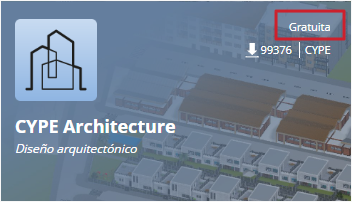
To use any of the free CYPE apps, follow these steps:
- Register, download and install the desired free app from BIMserver.center:
- If you have any questions, problems or queries, please use the form or email addresses provided to receive technical support from CYPE:
2. Campus license
Students and teaching staff can use CYPE programs in academic (non-professional) projects using the Campus license.
The Campus license is a type of temporary license that can be used to run CYPE programs and modules agreed with a university for a specific period, typically one academic year (more information).
Where granted, the Campus license allows users to work with CYPE's programs that are not free, as well as other apps, some of which are also included in BIMserver.center.
To use the Campus license of CYPE programs, follow these steps:
- Check the existence of a Campus agreement with the university that you belong to by accessing the list of educational institutions participating in the Campus license program:
- Access the exclusive page of the educational institution, where you will find the application form.
- Fill in the application form and accept the terms of use.
- Wait for the application to be evaluated. Once approved, you will receive a Campus license key by email within 24-72 working hours. Normally, the Campus key must be renewed every year in order to be able to use it for the following academic year.
- Download and install CYPE software, either through the CYPE Menu or by installing individual applications separately:
- After installation, enter the email address and password provided in "Use electronic license" in the CYPE Menu or in the File menu in the individual program.
Note: From version 2026.a onwards, this step allows users to enter credentials for any mode of access to the program. - If you have any doubts, problems or queries, please write to soporte.edu@cype.com from the email address you used to register, indicating your name.
3. Evaluation license
For professionals, there are several options to use CYPE software completely free of charge, either permanently, in the case of CYPE's free software, or temporarily, for software that requires the purchase of permits for professional use.
The CYPE apps that are not free (both the apps available in BIMserver.center that include paid modules and the programs in the general CYPE menu) have a free access mode with a time limit on their use: the evaluation license (more information).
By using this mode, the program can be run for 30 calendar days, during which users can evaluate all their options. An internet connection is required.
This access mode is designed to enable users to evaluate the software, determining its applicability to their projects and assessing its suitability for acquisition. At the end of the evaluation period, the work carried out can be opened, if desired, with a professional acquisition license.
To use the evaluation license for CYPE software, please follow these steps:
- Request the evaluation license using the form available at the following link to obtain a key:
- Wait for the app to be assessed. Once approved, you will receive an evaluation license key by email within 24-72 working hours.
- Download and install CYPE software, either through the CYPE Menu or by installing individual applications separately:
- After installation, enter the email address and password provided in "Use electronic license" in the CYPE Menu or in the File menu in the individual program.
Note: From version 2026.a onwards, this step allows users to enter credentials for any mode of access to the program. - If you have any doubts, problems or queries, please use the form or the emails to communicate with CYPE's technical support service: